Mobile App:
- Go to “Recently Saved” section in the home screen or “Collections”
 from the tab bar below (To know more about Collections, click here).
 - Click on a saved article (HTML or PDF) to open it.
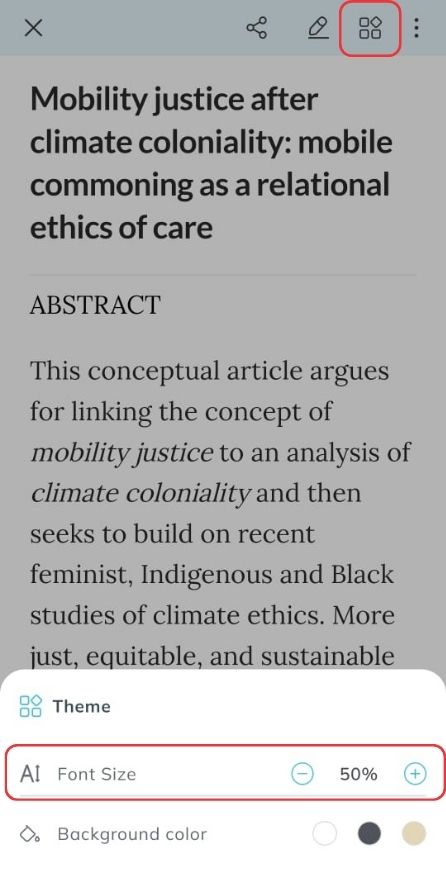
- Click on the
 (Theme) in the in-app viewer or PDF viewer at the top right of the screen.
 - At the bottom of the screen, find
 , “
, “ ” (small in size) and “
 ” (big in size) on the left and right respectively.
 - Click on “” to enhance the size of the text and click on “” to reduce the size.
Web App:
- Go to the “Recently Saved” section on the home page or “Collections” from the sidebar.
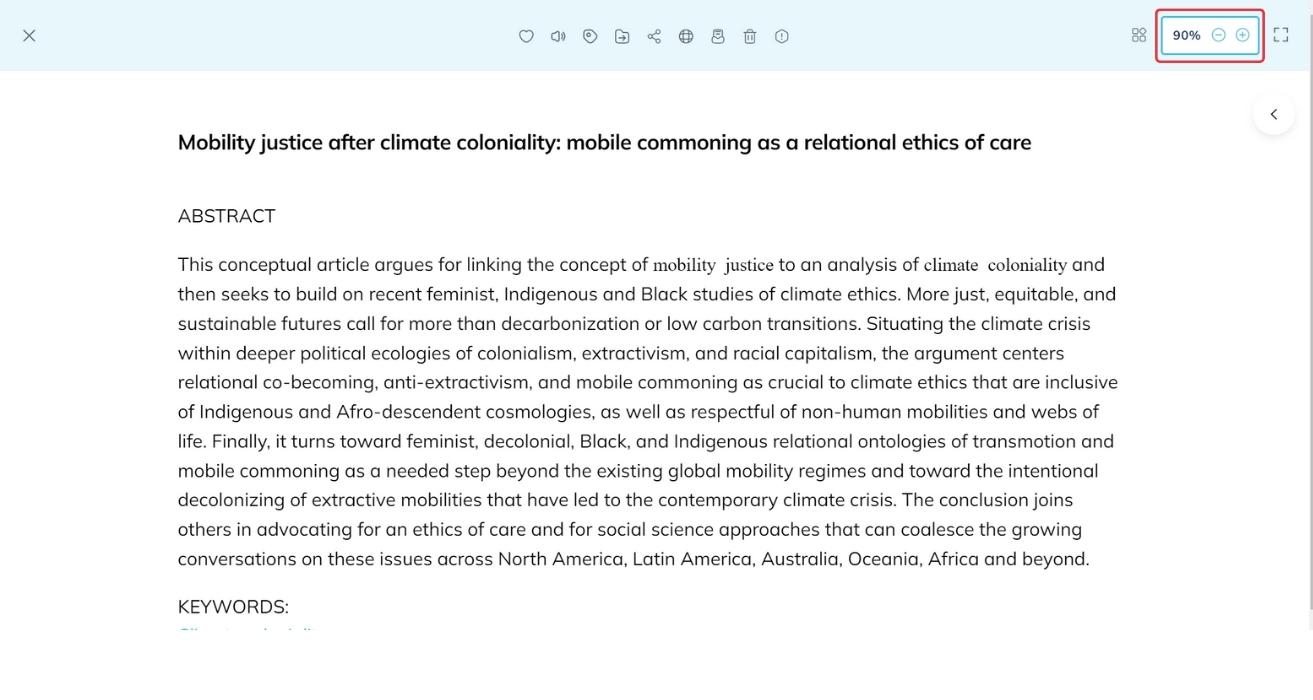
- Click on the desired HTML article. It will open in the in-app viewer.
- On the top right of the viewer, find the font adjustment section and click on it.
- Click on “” to enhance the size of the text and click on “” to reduce the size.